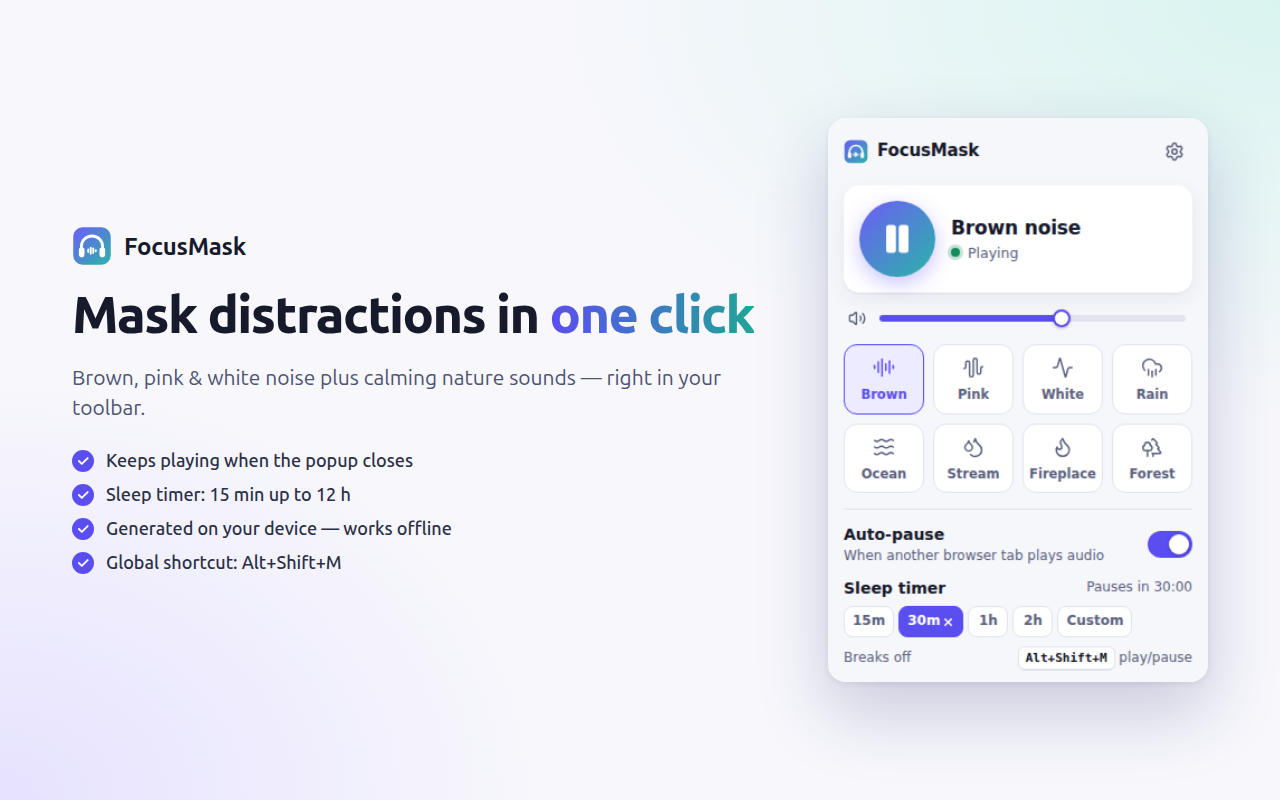
Brown, pink and white noise plus calm nature sounds, one click from your toolbar. When another tab
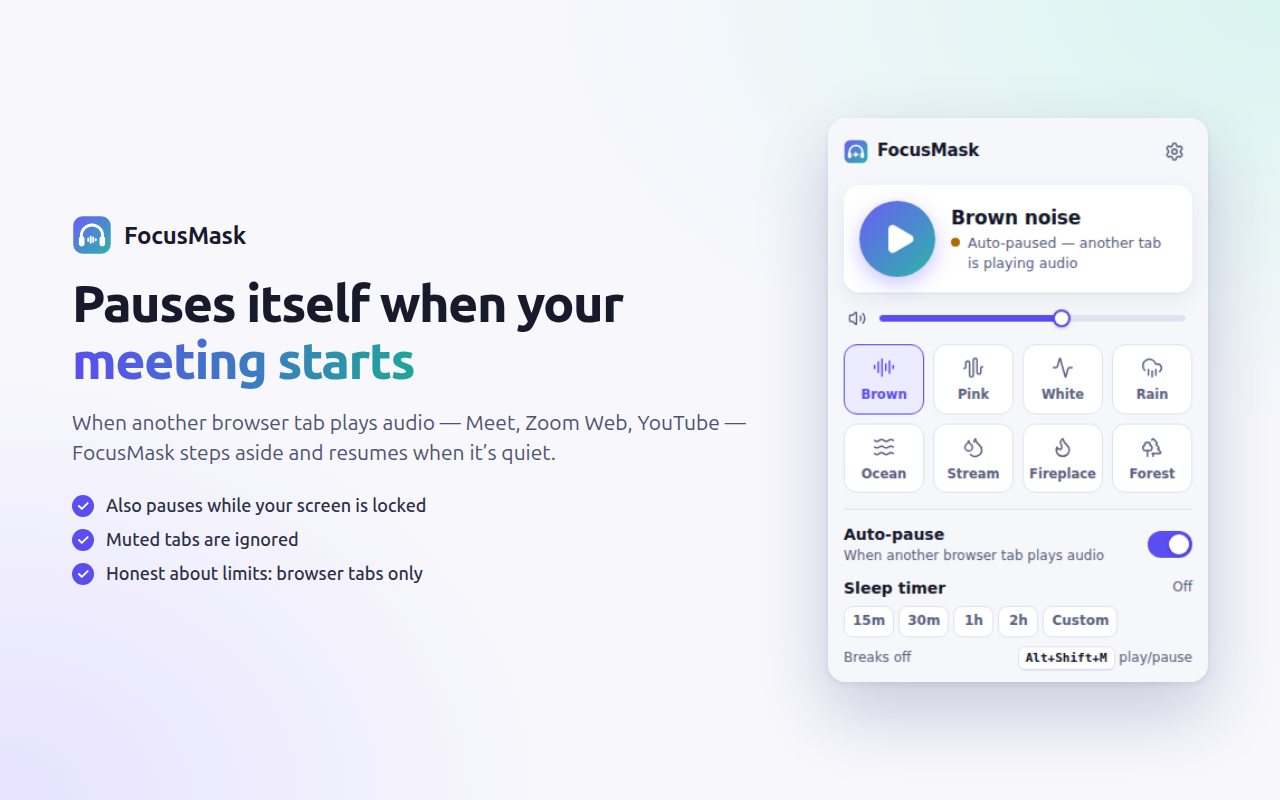
starts playing audio, FocusMask fades out. When that tab goes quiet, it fades back in.
No setup, no account. It keeps playing after you close the popup and gets out of the way on its own.
Pick a sound
Click the toolbar icon and choose brown noise, rain, ocean or any of the eight built-ins. Or add your own audio.
Get to work
Close the popup. The sound keeps going in the background and drowns out chatter, traffic and the open office.
Join the call
When a meeting or video starts in another tab, FocusMask fades out. When it ends, the sound fades back in.
Features
Everything you need to focus. Nothing you don’t.
A small popup for everyday use and a settings page for the rest.
Auto-pause for meetings and videos
Google Meet, Zoom or Teams in the browser, YouTube, Spotify Web: when a tab makes sound, FocusMask fades out, then fades back in when the tab goes quiet. Muted tabs are ignored.
Meet tab
FocusMask
Tab audioFocusMask volume
8 built-in sounds
Generated on your device. Nothing to download.
Brown
Pink
White
Rain
Ocean
Stream
Fireplace
Forest
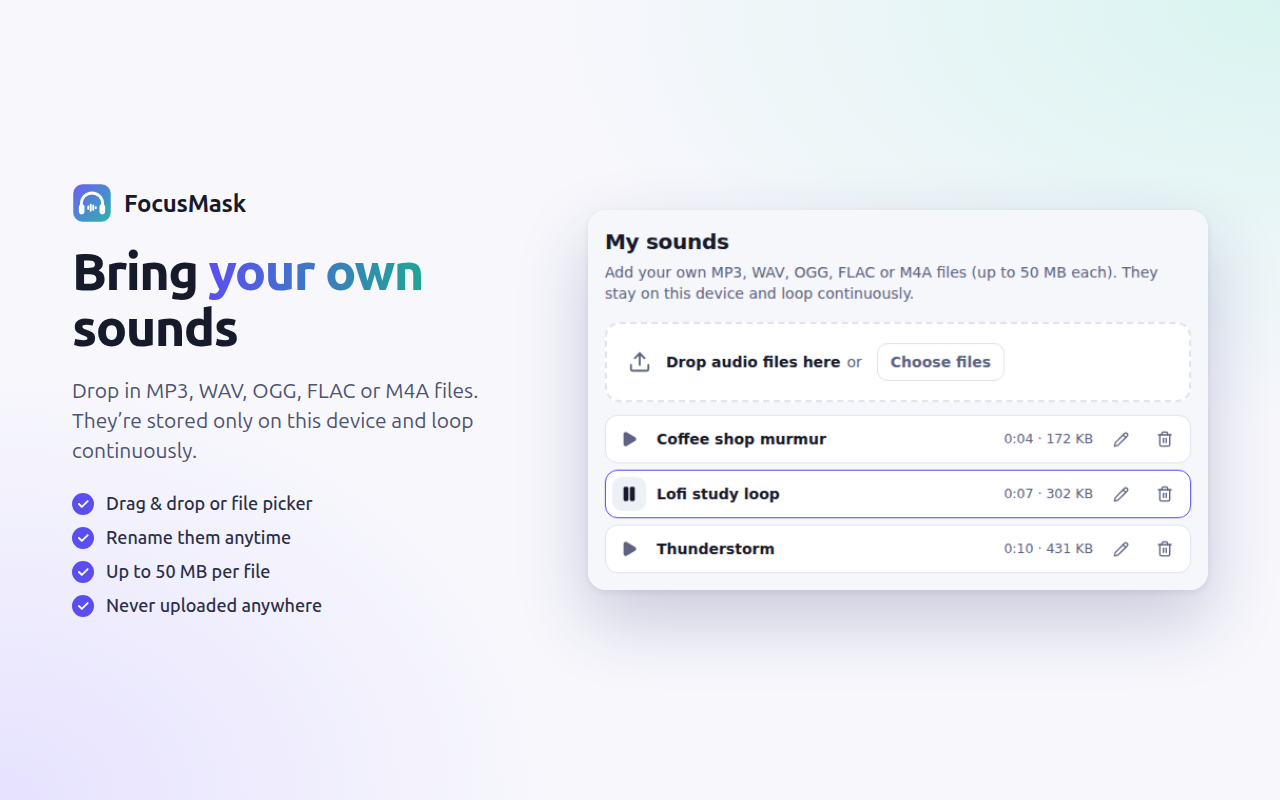
Your own sounds
Drop in audio files. They loop seamlessly and never leave your device.
MP3
WAV
OGG
FLAC
M4A
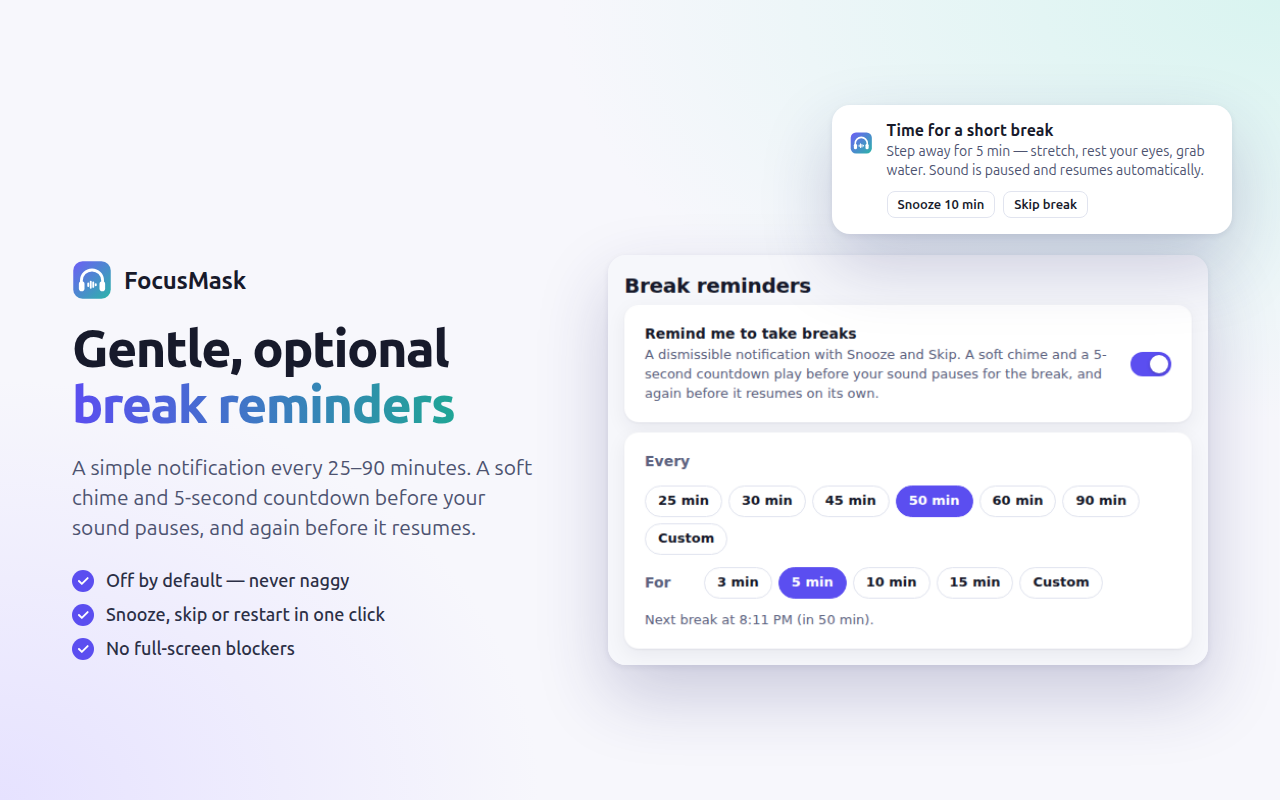
Gentle break reminders
A soft chime and a 5-second countdown before every break, and before the sound comes back.
0:05Break starts soon
Sleep timer
Fades out after the time you pick, anything up to 12 hours.
15m
30m
1h
2h
Custom
Hands-free control
Shortcut, headphone button or media keys. It also pauses while your screen is locked.
Alt+Shift+M
Status at a glance
The toolbar badge tells you what’s happening and why it stopped, without opening anything.
ONPlaying
IIAuto-paused
BRKOn a break
5Countdown
A closer look
Small popup. Thoughtful settings.
One click to playPick a sound, set the volume, close the popup.
Auto-pauseSteps aside for meetings, with an honest note on what it can detect.
Your own audioUpload, rename and loop your files. They stay on your device.
Break remindersA heads-up before every change, never a surprise.
Private by design
Your focus is nobody else’s business.
No accounts, no analytics, no servers. FocusMask runs entirely inside your browser.
No data collected
Your preferences stay in Chrome’s own storage. Nothing is sent anywhere.
Works offline
Every sound is generated locally. FocusMask makes no network requests.
Minimal permissions
It can’t read your tabs. It only checks whether some tab is making sound.
Honest note: Chrome extensions can only see browser tabs. FocusMask can’t detect desktop apps, phone calls or people talking nearby. Use the toolbar button or shortcut for those. Read the privacy policy.
FAQ
Good questions
Why doesn’t it pause for my Zoom or Teams desktop app?
Extensions can only see browser tabs. If you use a desktop app, press Alt+Shift+M or click the toolbar button when the call starts.
Which sound should I use?
For voices and conversations, brown noise masks best. Pink noise is a good all-rounder. Nature sounds mask less but are nicer for long sessions.
Does the sound keep playing if I close the popup?
Yes. Playback runs in the background until you pause it or close Chrome.
Is it really free?
Yes. No trial, no account, no ads, and no data collection.
 FocusMask